In the last post, I wrote about how reading and writing your deck became possible from a conversation with Claude. This is the follow-up. Every service in the catalog now has an entry point to its official MCP documentation. Open a card’s memo and the link is there; the AI receives that URL mid-conversation, reads the docs, and walks you through your setup.
If you’ve already connected AI Deck’s MCP server (the three-minute setup from the last post works as-is), you can start asking for things like this today:
- “Which tools in my deck support MCP?”
- “I want to connect Firecrawl to Claude Code. Walk me through it.”
- “I’m organizing meeting notes right now. Find me an MCP from my deck or the catalog that would help.”
In other words, you can hand off the research about how to connect along with everything else. I’ll use Claude as the example here, but as before, MCP is a standard protocol ─ Codex, Cursor, Gemini CLI, or any other MCP-capable AI agent works the same way.
Here’s why this works, step by step.
Setting up MCP starts with hunting for documentation
MCP is useful, but the road to connecting it is paved with small frictions.
First: does the service even offer an official MCP? Just answering that takes a search. Search results mix in unofficial implementations, so you also have to figure out which one is authoritative. And once you finally reach the docs, the connection method differs from service to service. Some are browser-authorized (Notion). Some pass an API key in a header (Firecrawl, Exa). Some run locally on your machine (ElevenLabs). Every time, you start the research from scratch.
Each one is a few minutes of work. But those few minutes of friction turn into “maybe later.” You know it would be useful if connected, and yet it isn’t connected ─ you bought the tool, but it’s never on your belt.
Look at the catalog and you’ll know whether MCP exists
Open a service card’s memo (the sticky-note icon) and you’ll now see a plug icon alongside the links to the official site, docs, GitHub, and so on. Click it and the service’s official MCP documentation opens in a new tab.
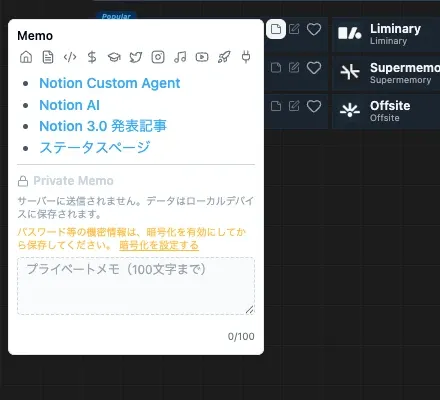
This icon only appears for services that actually offer MCP. Open a card’s memo and you learn “oh, this tool has an MCP.”
The URLs we list are vendor-official primary sources only. We surveyed every service in the catalog and linked only the ones we could confirm through official documentation or official repositories. Community-built unofficial implementations aren’t listed, however good they are. It’s not that unofficial implementations are bad ─ we want to preserve the guarantee that “if it’s in the catalog, it’s official.”
Notion, Canva, Perplexity, ElevenLabs ─ official MCPs have spread into business and creative tools too. Developer services like Cursor, GitHub Copilot, Cloudflare, AWS, and Google Cloud are there of course, and so are agent-oriented services like Firecrawl and Exa.
The AI gets handed the location of the docs
The link on the card is only half the entry point. The other half lives on the AI’s side.
The same URL is returned through AI Deck’s MCP server. Service details (get_service) and your deck (get_my_deck) now include an mcpDocsUrl field in their responses, so a Claude connected to AI Deck can find out mid-conversation which services offer MCP and where the docs live.
From there, Claude reads that page and assembles the steps for your environment ─ Claude Code or Desktop, key already issued or not. Rather than hard-coded automation, we absorb the “every service connects differently” problem by having the AI read the official docs each time. When the docs get updated, the guidance follows along.
The one thing we don’t hand to the AI: your API key
Reading this far, you might think, “while you’re at it, just automate the whole setup.” We deliberately don’t.
Many MCP servers require an API key. And if you paste a key into a chat box, it lives in the conversation history. That history gets saved in local logs and on the service’s side. A key that lands there can no longer be called a secret.
So AI Deck’s MCP server instructs the connected AI as follows ─ never let the actual key be pasted into the conversation. Hand over commands as templates with placeholders, and let the user substitute the real key and run it in their own terminal or config file.
So the guidance ends up looking like this:
Claude: Firecrawl uses an API key. Once you’ve issued one, replace
<YOUR_API_KEY>in the command below with your key and run it in a separate terminal ─ not in this conversation.
It’s an extra step, but that one step prevents your key from being persisted. We chose careful handling of keys over the pleasure of full automation.
Your deck becomes a toolbelt
At the end of the last post, I mentioned an idea: exporting the MCP connection settings for every tool in your deck in one shot ─ carrying the whole toolbelt with you. This feature is the result of rethinking that idea before building it.
Bulk-exporting connection settings sits badly with the reality that authentication differs per service, and there’s the danger of keys ending up in the exported file. Having the AI read the official docs each time and guide you keeps up with that diversity better, and it never touches a key. The toolbelt settled into a shape where you don’t “carry the whole thing” ─ you slot in one tool at a time, inside the conversation.
Until now, your deck was a list of what you use. Now it has an MCP entry point, adding a second layer: which of those the AI can reach directly. Scan your deck and connect the ones you use most, in order. Pick which tools to make reachable based on the kind of work you’re doing. What’s lined up in your deck isn’t just links anymore ─ it’s a shortlist of tools you can hand to your AI.
Nothing extra to set up
The MCP links in the catalog are visible today once you log in (the free plan is plenty). Using them from an AI works with your previous setup ─ no new configuration needed.
How many tools in your deck can Claude use directly? Start by asking: “which of these support MCP?”
If you already use AI Deck, issue a key under Settings → Developer to connect the MCP server. If not, start with AI Deck for free.