AI Deck’s MCP server now supports reading and writing your deck.
In a conversation with Claude, ask “show me my deck” and you’ll get your current deck back. Say “add the tool we just used to my deck” and it’s added on the spot. No need to switch to your browser. And reading, adding, and organizing are all available on the free plan.
This article uses Claude as the example, but MCP is an open standard — any MCP-capable AI agent works the same way: Codex, Cursor, Gemini CLI, and friends.
How to Ask — Prompt Examples
You don’t need to memorize tool names. Say what you want in plain language, and Claude picks the right tool.
Read and search
- “Show me my deck”
- “What did I have in my research area again?”
- “Which translation tools do I have in my deck?”
Add
- “Add Perplexity to my deck”
- “Add all the tools we used in this session to my deck”
- “If this tool isn’t in the catalog, file an addition request for it”
Organize
- “Move Suno to my music area and put it at the top”
- “Put the one we just added in my client-work area”
- “Put Perplexity in ‘Daily Drivers’” — areas go by the group names you gave them
Combine
- “Look at my deck and pick the tools that fit today’s tasks”
- “I want to summarize meeting minutes. First check my deck for something usable; if there’s nothing, recommend something from the catalog”
When a name is ambiguous, Claude asks you to clarify.
You: Add Notion Claude: The catalog has both Notion and Notion AI. Which one would you like to add? You: Notion AI
This isn’t cutting corners — it’s by design. I’ll explain why in the safety section further down.
”I’ll Bookmark It Later” Never Happens
You’re working with Claude and come across a great tool. You think, “I’ll bookmark it later.” And then you don’t. The name survives somewhere in your conversation log, but you never look at it again — sound familiar?
As long as recording a tool is a “do it later” task, the record never gets made. If it can happen as a natural side step of the conversation you’re already having, it does. That’s what this write support is about.
Originally, I only had reading in mind. If you could show your deck — the workbench where you line up the AI tools you actually use — to an AI agent, it could answer with “what you already use” as the premise. Not a generic “top 10 AI tools” listicle, but suggestions grounded in your own toolbox. But right after building read access, I noticed something: once you can read your deck in conversation, not being able to write to it becomes the new friction.
Here’s What You Can Do on the Free Plan
On top of the existing catalog-search tools, four tools that read and write your own deck are now live. Let’s start with a plan-by-plan summary.
| Operation | Free | Pro |
|---|---|---|
| Read your deck (get_my_deck) | ✅ | ✅ |
| Add services from the catalog (500+) to your deck | ✅ | ✅ |
| Move between areas / reorder (move_in_deck) | ✅ | ✅ |
| Request a catalog addition | ✅ | ✅ |
| Register a service not in the catalog privately and add it | ─ | ✅ |
Only the last row is Pro-only — the “private registration beyond the catalog” described later. Everything else covered in this section works on the free plan.
Reading Your Deck — get_my_deck
Returns the deck belonging to the owner of the API key, in its state at the moment of the call. It includes your area structure (groupings like “Daily drivers” or “Client work”) and each service’s name, URL, description, and tags.
Unlike published decks, this isn’t a snapshot, so there’s no need to publish your deck. Values you’ve overridden — custom names, custom URLs, and so on — are reflected as-is.
Adding to Your Deck — add_to_deck
Takes a service name (and a URL, if you have one) and adds it to your deck. It first matches against the AI Deck catalog (500+ services) by name and URL, and if it finds a match, it favorites the service right away — most tools you encounter in day-to-day work are already in the catalog, so this usually completes the job.
When multiple candidates match about equally well, it returns the list of candidates instead of registering anything. Claude will ask you, “which one did you mean?” (The reasoning behind this is in the safety section.) Adding the same service twice doesn’t create a duplicate — you simply get back “it’s already in your deck.” Repeating the same request never breaks anything.
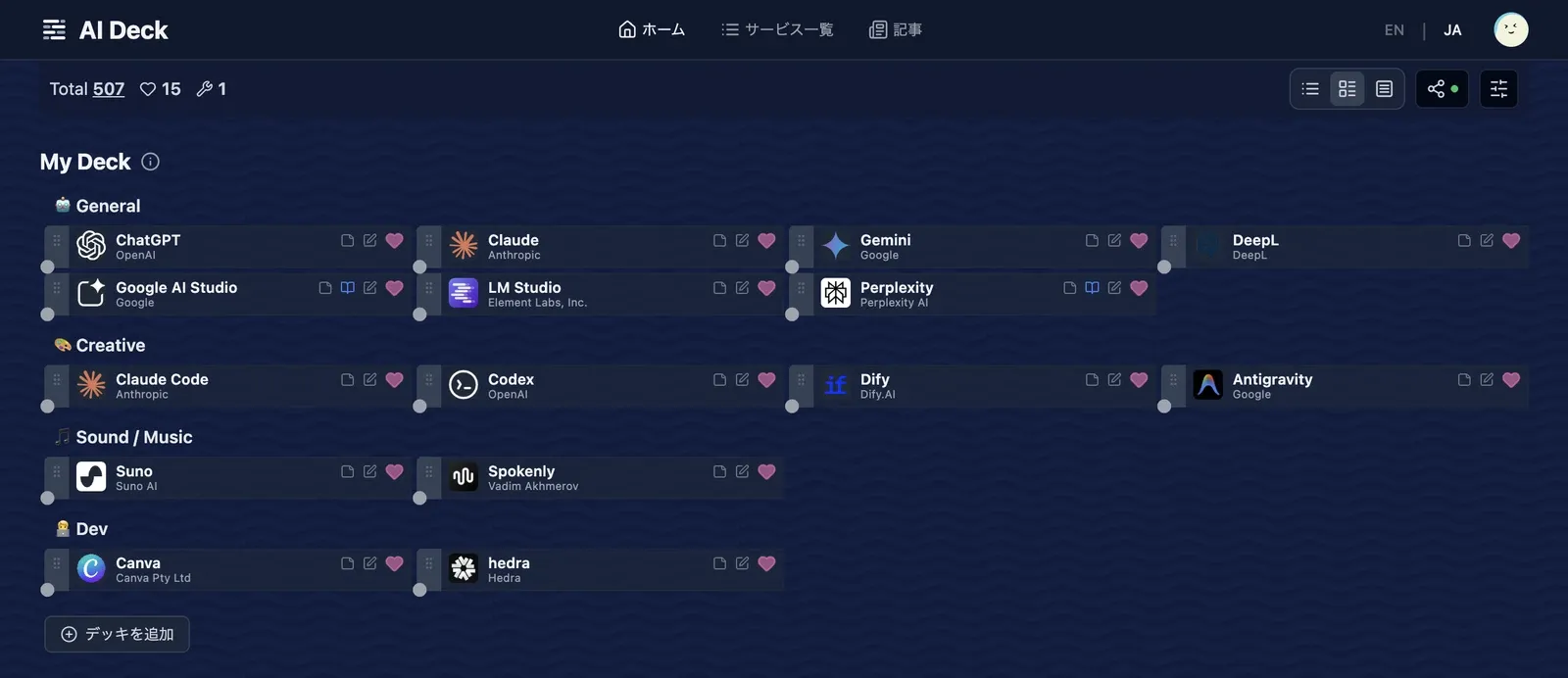
Here’s my deck right after running “Add Perplexity to my deck.” The Perplexity added from the conversation sits right there in my usual deck.
Organizing Your Deck — move_in_deck
Handles area moves and reordering — “move this to my research area,” “put it at the top.” With get_my_deck showing you the deck, you can arrange your layout entirely in conversation.
You can name the target area by the group name you gave it in your deck — no area numbers needed. Exact names like “Sound / Music” work, and so do partial matches like “music.” If a name doesn’t match anything, Claude receives the list of your current areas and picks again, so a sloppy request never lands a service in the wrong place.
Requesting Tools Missing from the Catalog — request_service_addition
Lets you send a request to the maintainer (that’s me) to add a service that isn’t in the catalog. The loop I’m aiming for: new tools you discover in conversation feed directly back into a richer catalog.
With Pro, Your Deck Extends Beyond the Catalog
When you meet a tool that isn’t in the catalog — a brand-new overseas service not yet indexed, an internal company tool, a niche piece of business software — on the Pro plan, add_to_deck creates it as a private service and adds it to your deck in the same step.
You: Add the meeting-minutes tool we use internally to my deck. The URL is minutes.example.com Claude: I couldn’t find it in the catalog, so I created it as a private service and added it to your deck
Private services are registration slots visible only to you, up to 100 of them. You can freely edit the name, URL, description, and tags. The value of Pro is being able to mirror your toolbox onto your deck in full, without waiting for the catalog to catch up.
If you ask for an out-of-catalog tool on the free plan, the error message comes back with two options — “request a catalog addition (free)” or “register it privately right now with Pro” — and Claude walks you through them as-is. Pro is $1.99 per month.
An Answer to “You Want Me to Give an AI Write Access?”
Some of you probably paused at the idea of an AI being able to modify your data. That instinct is correct — which is why this release ships with protection on three fronts: permissions, accidental writes, and leaks.
First, permissions. Scoped API keys landed together with write support.
- Keys come in two kinds — “read-only” and “read + write” — and write tools only work with a read-write key
- The default at creation time is read-only. Every key you’ve created before now also stays read-only. Nothing about your deck suddenly became writable today
- A key’s scope cannot be changed after creation. If you want to try writing, create one new key. By deliberately not building a scope-change feature, the entire class of “my key’s permissions escalated without me noticing” is designed out
- A key can only write to the deck of its own owner
Next, accidental writes. The design decision I wrestled with most was the behavior when matching is ambiguous. Say you ask for “Notion” — the catalog has both Notion and Notion AI. If the tool guessed “probably this one” and registered it, a wrong service would slip into your deck. Operations inside a conversation are harder to catch than operations on a screen where you can see what’s happening. So when things are ambiguous, the spec is: don’t write — ask back.
Finally, leaks. Private notes you’ve written on a service never appear in MCP responses. They aren’t stripped from the output — they’re excluded at the database-query stage. And an automated test that verifies “notes can never appear in a response” runs permanently.
Setup Takes Three Minutes
All you need is to issue an API key and register it in your MCP client.
1. Create a Key
Create a key in Settings → Developer. If you want write access, choose “Read + Write” in the creation dialog.
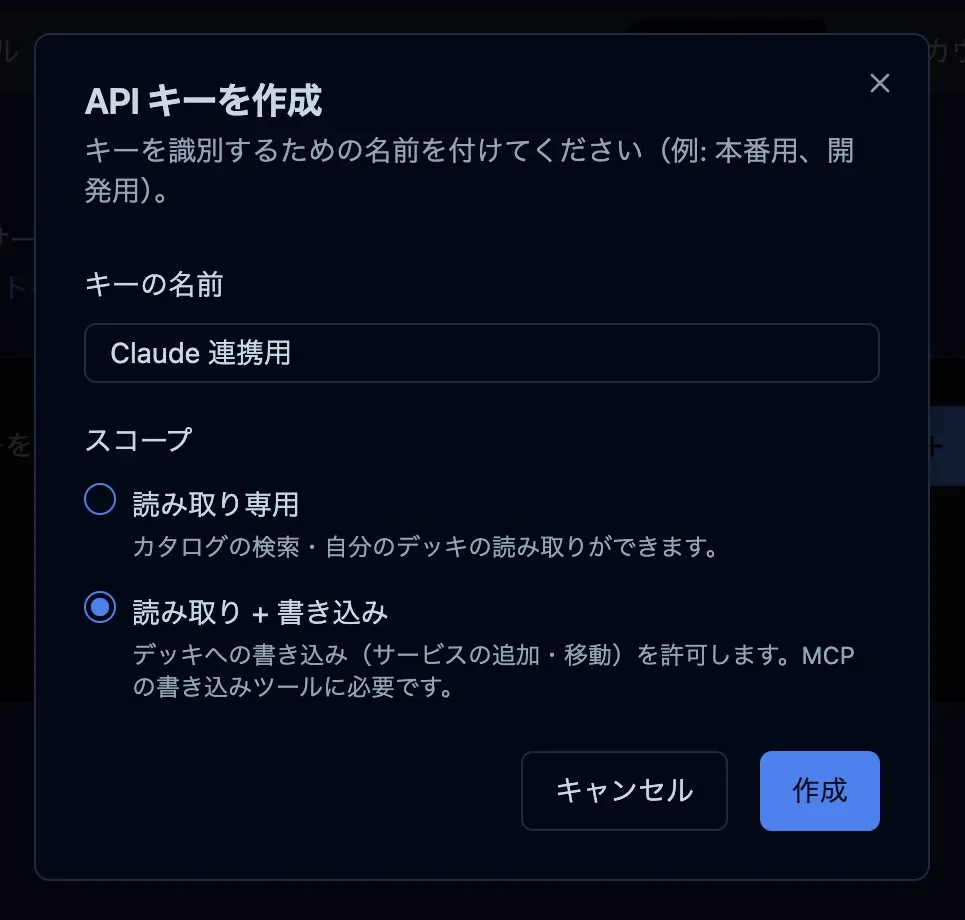
Even if you already have a key, writing requires creating one new key (the scope of an existing key can’t be changed).
2. Register It in Your MCP Client
With Claude Code, it’s one line in your terminal.
claude mcp add --transport http ai-deck https://api.ai-deck.app/mcp \ --header "Authorization: Bearer <your API key>"For Claude.ai or Claude Desktop, open the connector settings (on Claude.ai it’s under “Customize > Connectors”; on Desktop, “Settings > Connectors”), choose “Add custom connector,” and register the endpoint URL (https://api.ai-deck.app/mcp).
Other MCP clients — Codex, Cursor, Gemini CLI — work the same way: register the endpoint URL with an Authorization: Bearer <key> header in each client’s MCP settings.
3. Start Talking
That’s it — just ask. Try the prompt examples above as they are.
The full tool list and technical specs live in the developer documentation.
Bookmarks Are No Longer Just for Humans
This feature started with a question from a trial user: “If I set up a deck, can I hand it to Claude and say, ‘these are the tools you’re allowed to use’?”
What that question points to is a shift in what a deck is for. Bookmarks, until now, existed for humans to look at. The deck, too, started out as something you build to survey your own workbench. But once you spend all day working with AI agents, the information of “what I use” becomes something AI reads and writes — not just humans. The deck gets shared between you and your AI as a definition file for your toolbox.
I’m thinking a few steps further down this road: next, I’m sketching a feature that exports the MCP connection settings for every tool in your deck in one batch — carrying your entire tool belt with you, so to speak.
But it starts with reading and writing. Try handing your deck to Claude.
Already using AI Deck? Create a key in Settings → Developer. New here? Start AI Deck for free.