AI Deck is now live. It’s a web app that lets you pick just the AI services you actually use from a catalog of 500+ and arrange them your way. It’s free to use.
I built it for anyone whose bookmarks bar is overflowing with AI tools, or who tried managing them in a spreadsheet and gave up.
🎁 Launch campaign (through Wednesday, August 19) 🎁 Retweet the campaign post and sign up for AI Deck to get Pro features free forever (ad-free browsing is the only exclusion). See the post for details on how to participate.
Why “Wait, Where Was That Tool Again?” Keeps Happening
New AI tools appear every week. Chat, image generation, audio, video, coding assistants — if you keep tossing everything you try into your browser bookmarks, the whole system stops working within six months.
There are three reasons for this.
First, bookmarks are flat, and that doesn’t match how AI tools need to be organized. Even if you create an “Image Generation” folder, all you get is Midjourney, Nano Banana, and Adobe Firefly sitting side by side — with nothing to remind you which one you were using for what.
Second, tools you merely tried get mixed in with tools that stuck. Something you touched once carries the same weight as something you use every day.
Third, visiting a catalog site doesn’t solve it either. The AI directories out there are “lists of everything,” not “the tools you use.” You browse, and that’s the end of it.
AI Deck is an answer to that third problem. Instead of browsing a catalog, you build your own workbench from it.
What You Can Do
Build a Deck
From 500+ services, add the ones you use to your favorites. You can reorder them freely and organize them with groups and color labels. Arrange them however you like — by category, or into groups like “daily drivers,” “client work,” and “trying out.”
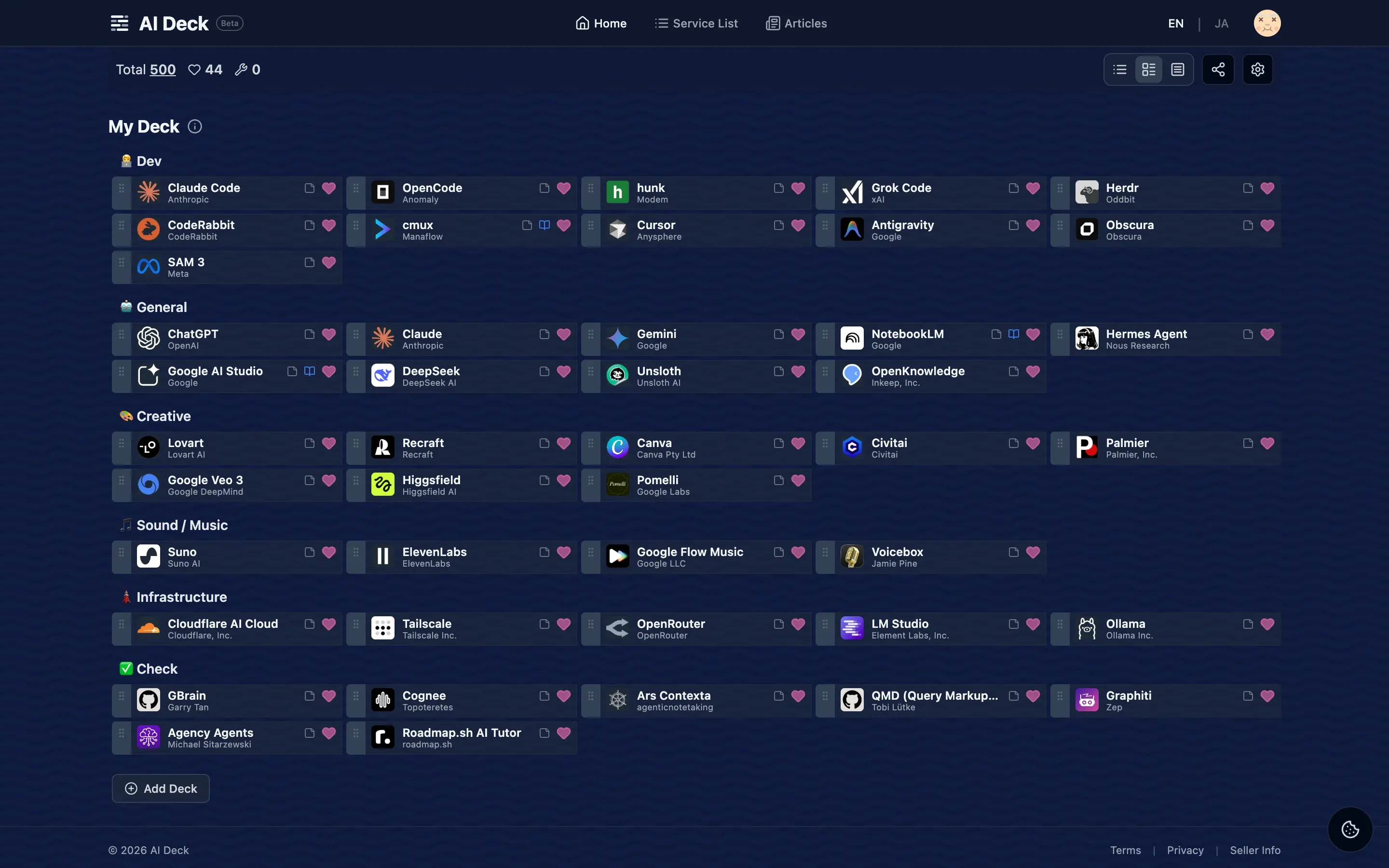
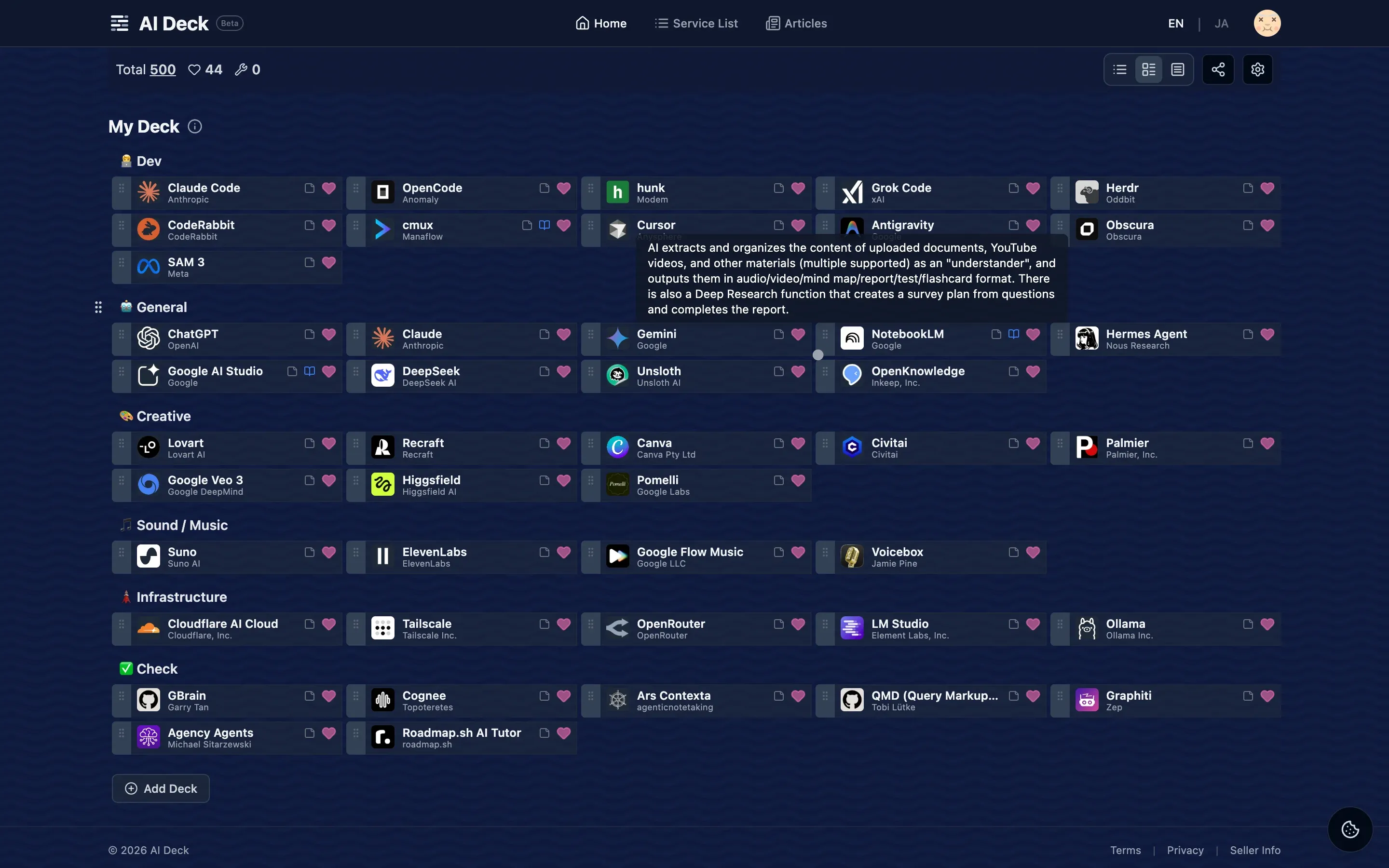
Rather than cramming information onto each card, the design opens it up only when you need it. Hover over a logo and that service’s description unfolds in place; click through and you land on the official site.
From the notes button on a card, you can open all of that tool’s related links in one place — official site, documentation, GitHub, pricing page, and social accounts.
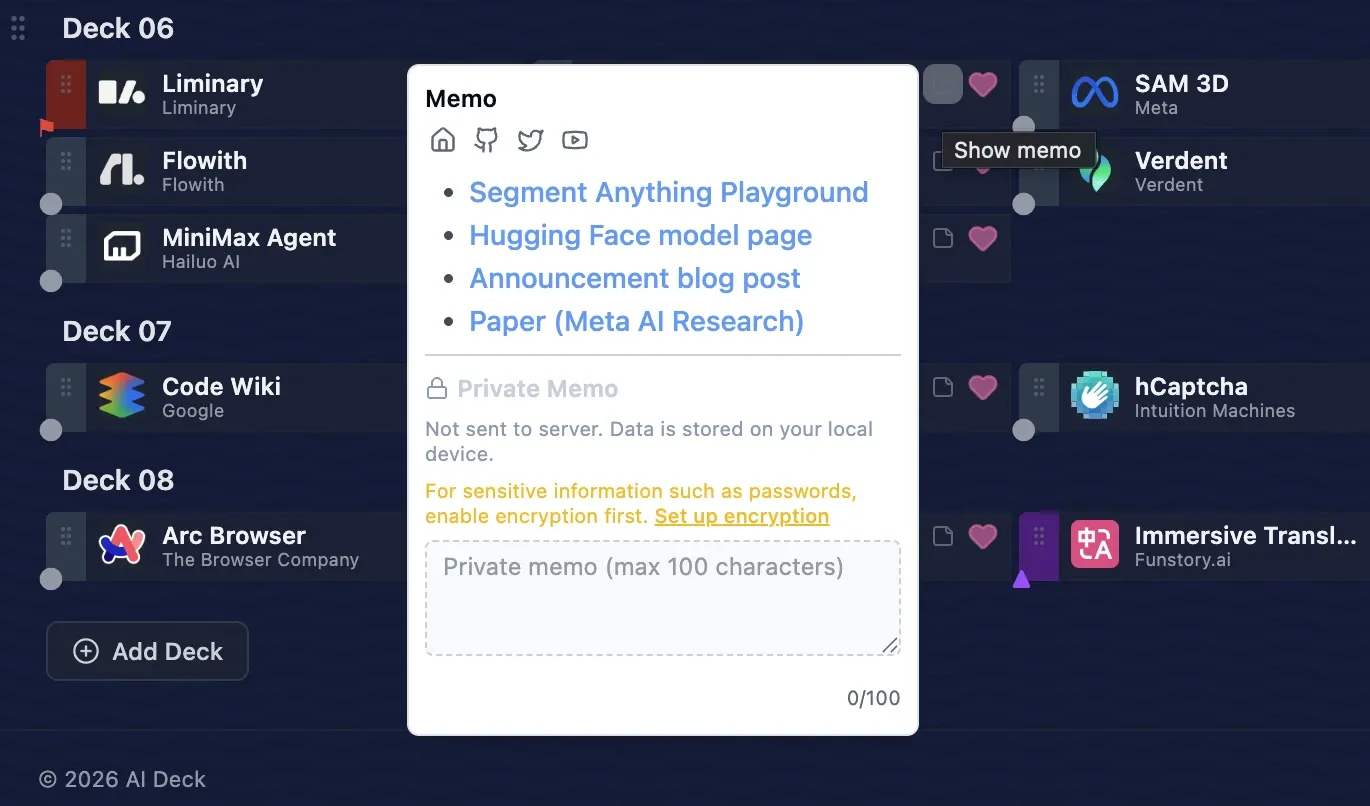
There are two kinds of notes, and they split by role. The difference isn’t length — it’s what the note is about.
- Item notes (in the service’s edit screen / up to 500 characters / Markdown supported / Pro) — a place to add information about the service itself: details the official description doesn’t cover, the name your team calls it internally, which plan you’re subscribed to. These are saved to your account, so they stay with you even when you switch devices.
- Private notes (from the card’s notes button / up to 100 characters each) — a place for your side of things. They’re never sent to the server and live only on the device you’re using. Set a passphrase and they’re encrypted on-device, which makes them a workable home for sensitive notes like the ID or password you use with each service. You can move them to another device via export and import.
Explore
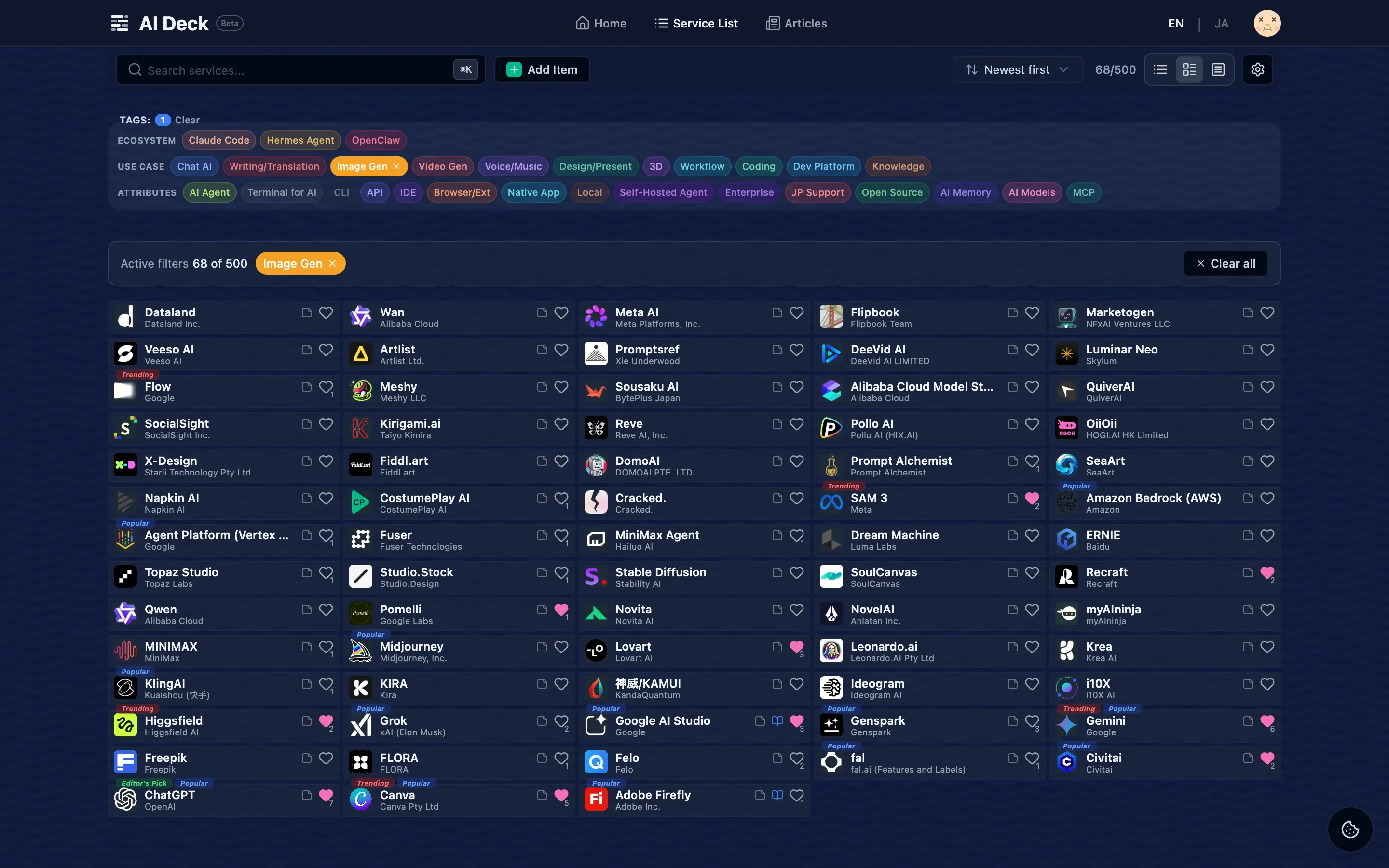
Fast search and tag filtering let you dig through the catalog. Tags are divided into three facets (ecosystem / function / attribute), and they combine as OR within a facet, AND across facets. A filter like “image generation OR video generation, AND Japanese language support” comes together just by selecting tags.
Switch How It Looks
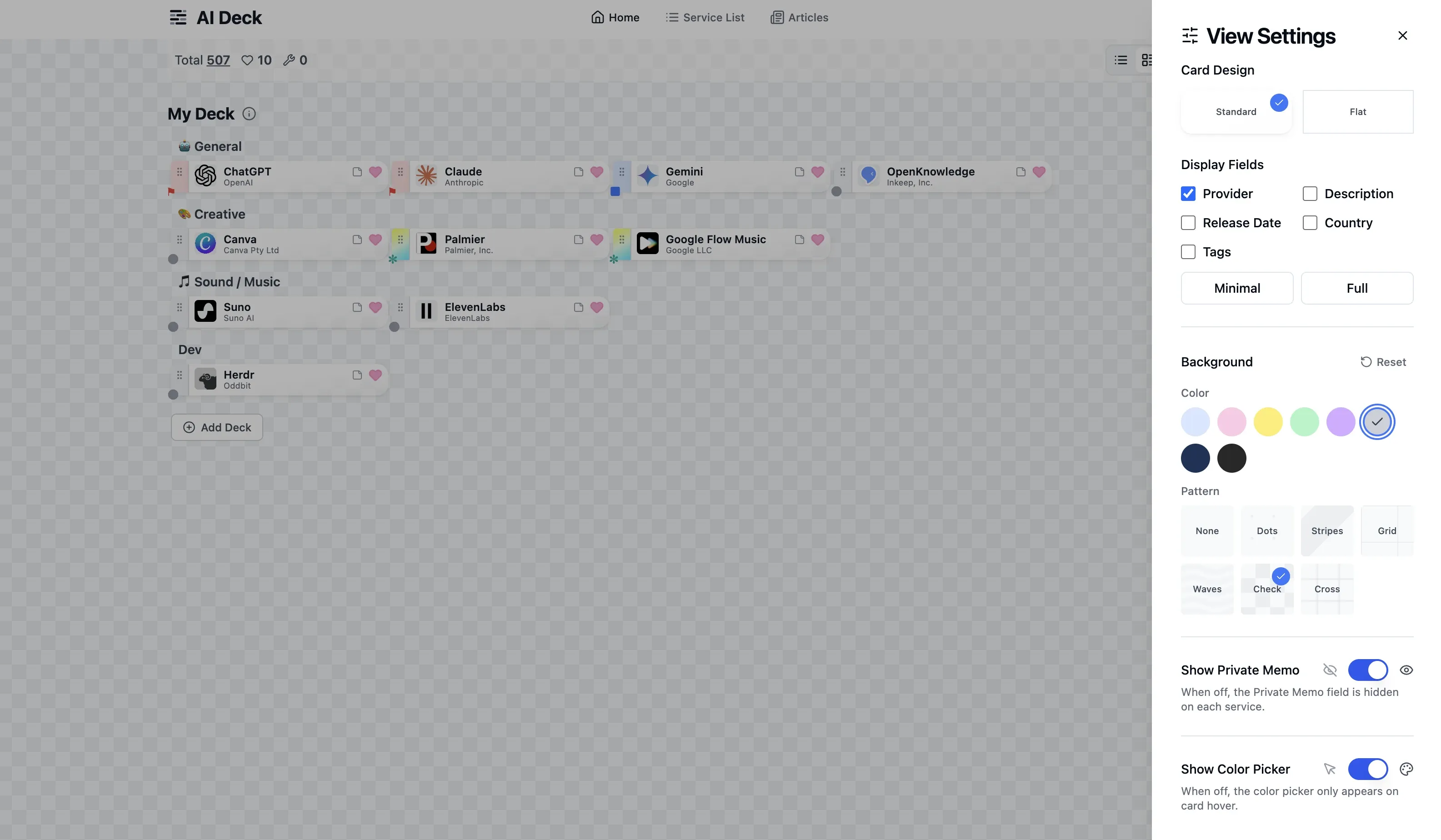
The list comes in three view levels: a minimal view that packs in names at maximum density, a compact view (the default) showing names and providers, and a full view that puts descriptions, tags, and release dates right on the cards.
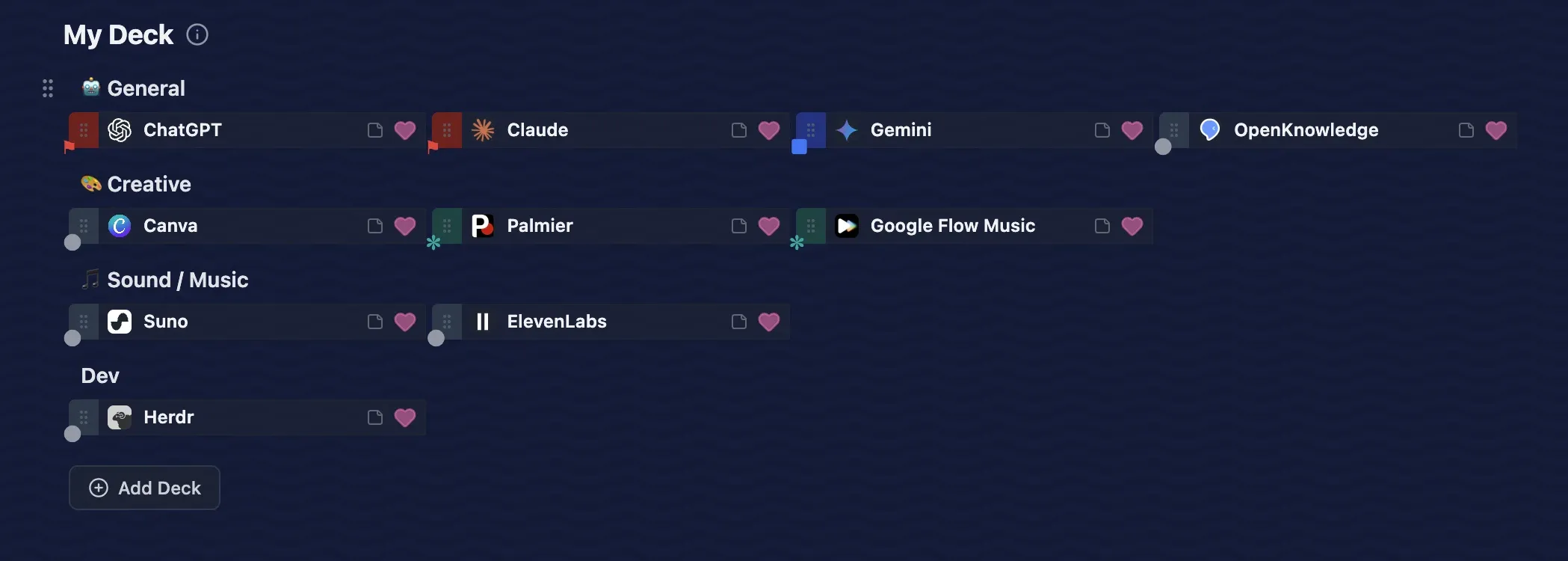
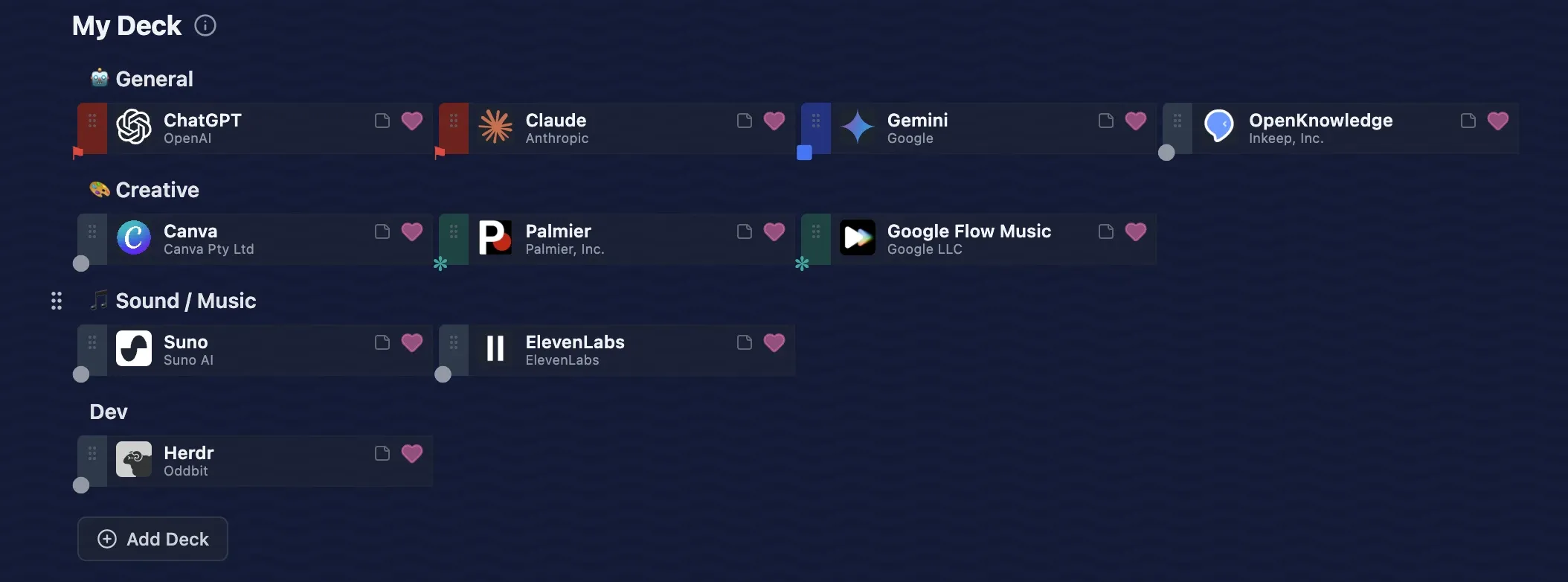
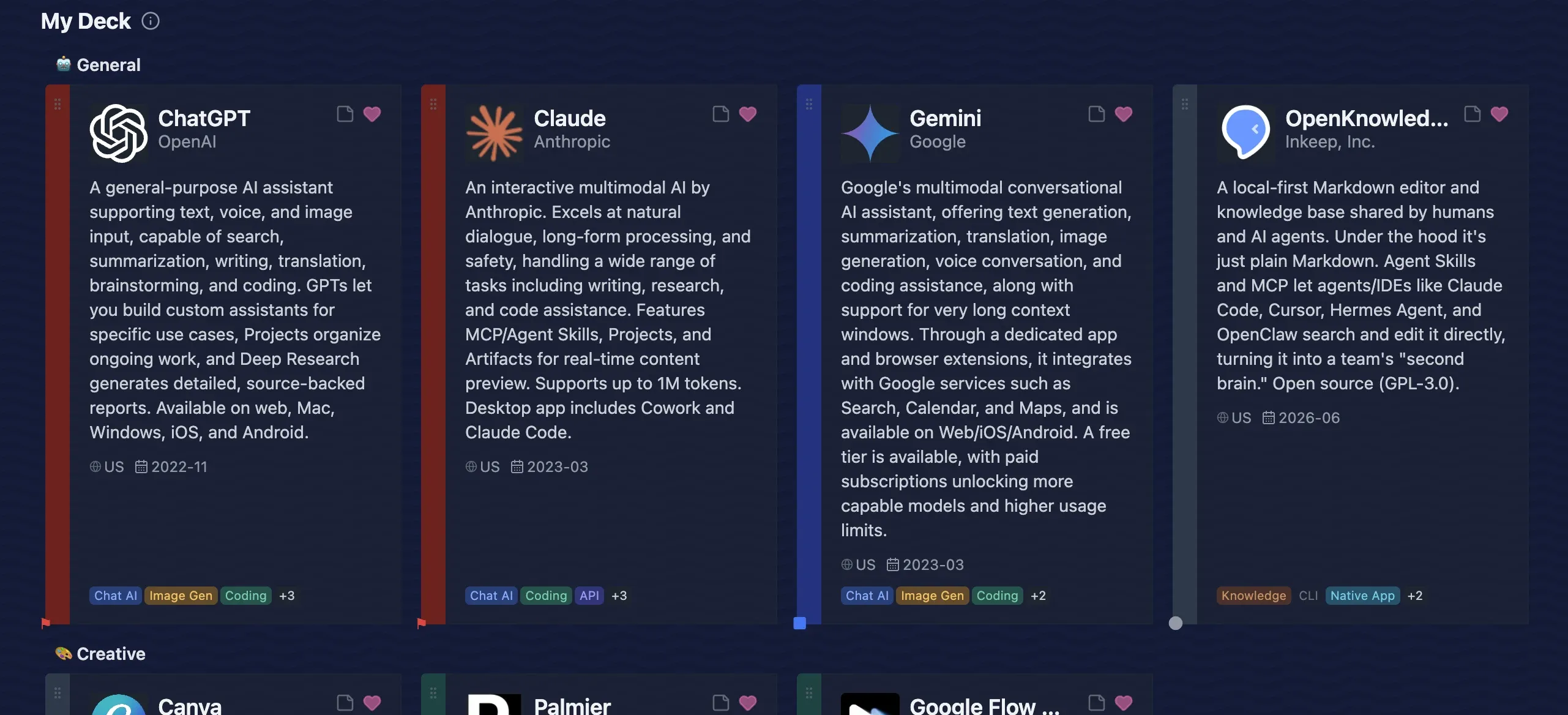
Everything about the appearance lives in the View Settings panel: card design (Standard / Flat), which fields to display, and the background color and pattern (dots, stripes, waves, and more). Whether to show the private memo field and the color picker is decided here too.
Make It Yours
Official descriptions often don’t quite fit how you actually use a tool. AI Deck lets you overwrite the description, official URL, and country of origin in your own words, and attach private notes. Your overrides are visible only to you and never affect anyone else’s catalog.
On the Pro plan, you can register up to 100 tools of your own that aren’t in the catalog — internal tools, private services you subscribe to, your own scripts. These are completely private and invisible to other users.
Publish Your Deck
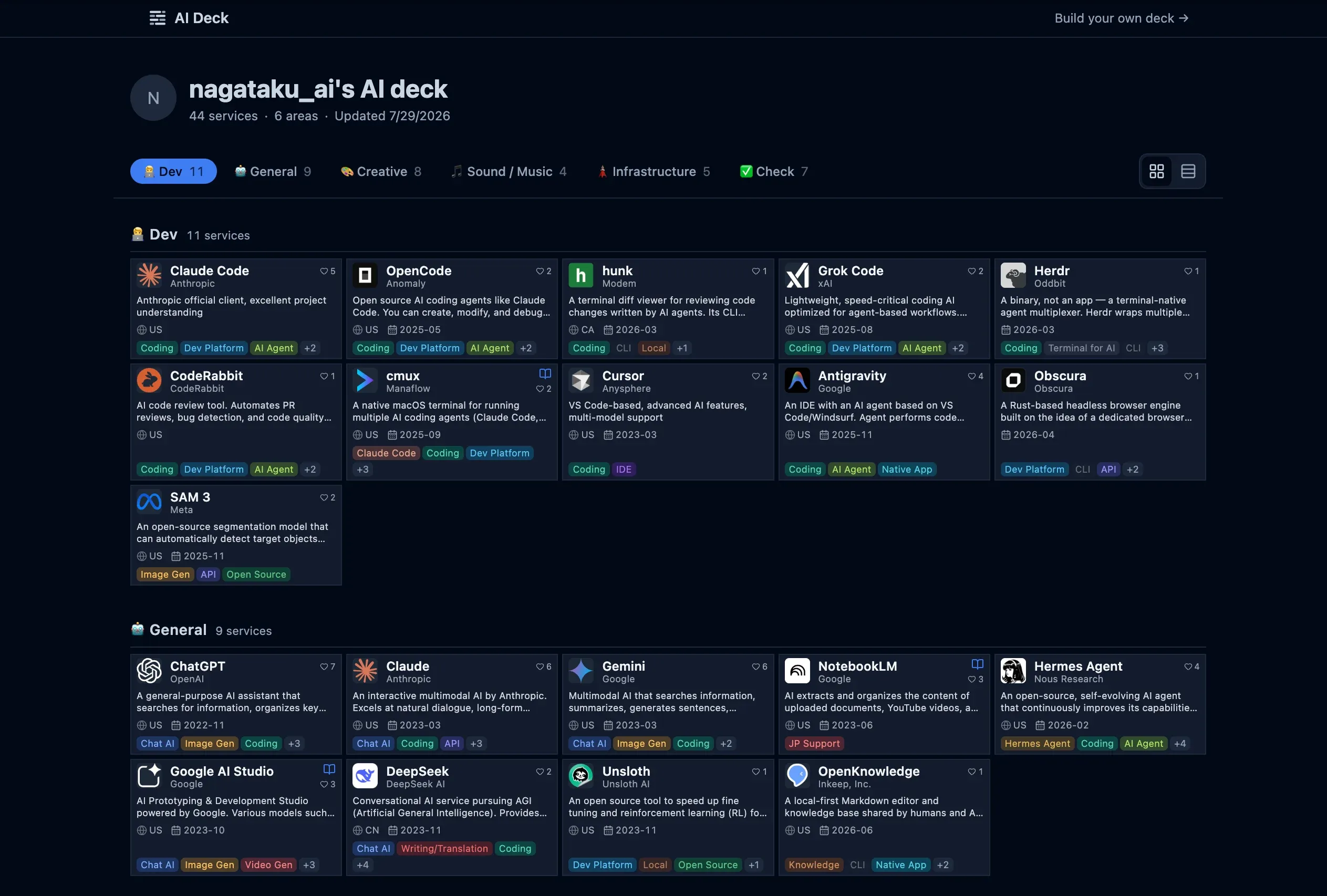
You can publish the decks you build. Share one as “the full set of tools I actually use,” and anyone can view it — all it takes is passing along a URL.
API and MCP Server
For developers, there are two ways to use the catalog from the outside.
- Public API — issue an API key and query it over REST. A single request can return up to 100 items.
- MCP server —
https://api.ai-deck.app/mcp. It provides six tools:search_services/get_service/list_tags/search_decks/get_deck/get_stats.
Register the MCP server in Claude Code or a compatible editor, and you can ask your agent to “find an AI tool that fits this use case.”
A Rough Guide to Request Counts
A request here means one call to an API endpoint or one invocation of an MCP tool. The limits are 1,000 requests per day on the free plan and 10,000 per day on Pro.
When you have an agent hunt for a tool once, it typically spends around 3–5 requests — fetching the tag list, searching, and pulling details on the services that caught its eye. The free plan’s 1,000 requests a day covers more than 200 of those lookups daily, which is plenty of headroom for everyday personal use. Pro’s 10,000 requests a day is meant for use cases like building the API into your own app and having many people hit it.
You can try the MCP server without an API key (per-IP limits apply). For sustained use, issue a key — you can create up to 2 on the free plan and up to 5 on Pro, from the settings screen.
How It Differs from Other AI Catalogs
In one sentence: it’s built not as an information site, but as a tool you use every day.
Most AI directories are read-only catalogs. You visit now and then, read descriptions the operators wrote, click a link, and that’s it. AI Deck aims for the opposite: something that sits parked next to your browser, the workbench you pass through every time you reach for an AI tool.
And a tool has to adapt to the hand that uses it. Rewriting a description in your own words, adding notes, slotting in your own tools — each of these changes applies only to your deck and never touches anyone else’s catalog.
To make this work, the data is split into four layers:
- The system’s standard catalog
- Corrections to the catalog by the operators
- Per-user overrides (favorites, ordering, rewrites, notes)
- User-specific services
Because only the fields a user has changed are stored, there’s no need to keep a full copy of 500+ services for every user. Catalog updates reach everyone as-is, and nobody’s customizations break.
How Much Fits on One Screen
As a tool, the other thing I refused to compromise on was the information density of the list view.
Most AI directories tile one large card per service, and you can’t grasp the whole picture without scrolling. That’s fine if you’re only browsing a catalog, but a deck is a tool you open every day. The fewer items fit on one screen, the more time you lose searching — every single time.
So there are three display modes: Minimal view, Compact view (the default), and Full view. Minimal and Compact fit up to five columns depending on screen width, while Full prioritizes information and caps at three columns.
Raising the density meant trimming text from the cards. What got trimmed stays reachable through hovers and notes — the card design described earlier exists precisely to balance out this density. And so the list stays responsive as the item count grows, it renders with virtual scrolling.
Pricing
The free plan covers browsing, favorites, groups and color labels, search and tag filtering, and private notes. It shows ads, and adding or editing items isn’t available. That said, if you spot an AI service missing from the catalog, you can submit an addition request even on the free plan — I review each one and add it to the catalog.
The Pro plan is $1.99 per month ($17.99 per year). It adds your own items, editing of existing items, ad-free browsing, and priority support. The annual plan works out to roughly three months cheaper than twelve months of the monthly plan.
Getting Started
You can sign up with an email address, or with a Google or GitHub account. It takes about 30 seconds.
We’re on Product Hunt
AI Deck launched on Product Hunt on August 4, 2026 (Pacific Time). If you try it and like it, your support would mean a lot.

AI Deck
Build a deck of your favorite AI tools
🎁 Launch campaign — now on (through Wednesday, August 19) 🎁 Retweet the campaign post and sign up for AI Deck to get Pro features free forever (ad-free browsing is the only exclusion). Three steps: 1. RT the post → 2. Sign up → 3. DM your registered email